
How to Optimize Every Stage of the WooCommerce Customer Journey
A shopper’s path through your WooCommerce store rarely fails in one big moment. It fails in small pieces: a product that never shows up in search, a checkout form that asks one question too many, an order that ships with no follow-up email after it. Store owners trying to fix this usually start by staring at one dashboard, often ad performance or cart abandonment, hoping that one fix solves everything else. It rarely does. Each of those failure points sits in a different stage of the journey, and each one has a different cause.
A more reliable approach is to match each stage to a tool built specifically for that job, instead of expecting one platform to handle discovery, trust-building, checkout, post-purchase service, and repeat business all at once. A plugin that fixes your product feed has nothing to offer a confusing checkout form. A checkout tool won’t help a shopper who never found your store to begin with. Once you know which stage is actually underperforming, the right plugin becomes obvious, and so does communicating with customers at each point in that journey.
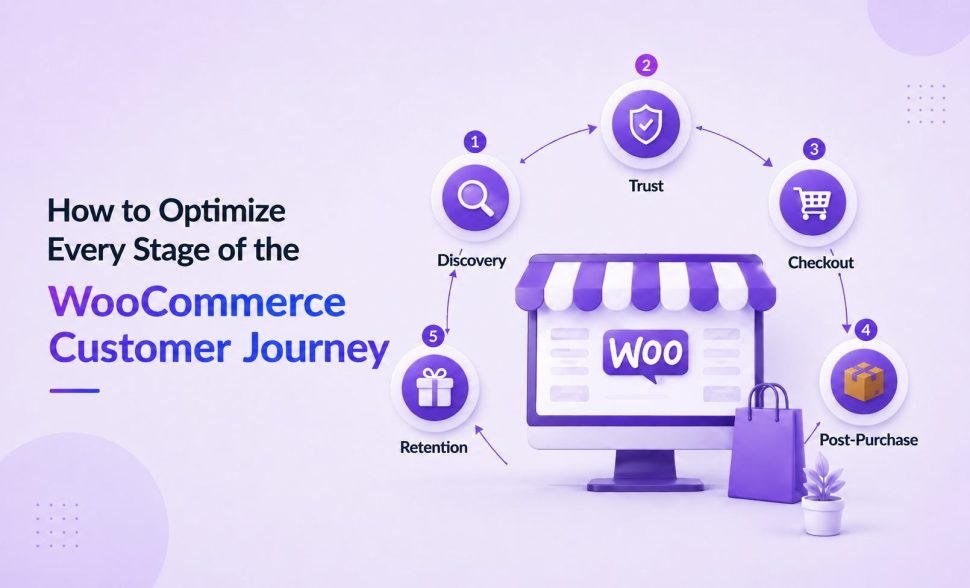
This guide walks through five stages of the WooCommerce customer journey: discovery, trust and consideration, checkout, post-purchase, and retention. For each one, you’ll find the plugins built to solve that specific problem. Several have a free tier, so you can test before you commit to anything paid.
Stage 1: Getting Discovered by the Right Shoppers
None of the later stages matter if shoppers can’t find your store, and nothing converts well if what they find is wrong or incomplete.
Start with on-page SEO. Yoast SEO handles meta titles, readability scoring, internal linking suggestions, XML sitemaps, and structured data for products, categories, and blog posts. A weaker competitor regularly outranks a better store simply because this basic layer was never set up. Skip it, and you’re relying on ads to do all the work search should be doing for free.
Search rankings only cover part of how people shop. Product Feed for WooCommerce turns your catalog into feeds for Google Shopping, Facebook, Instagram, TikTok, and Pinterest, pulling titles, prices, images, and stock levels automatically instead of making you re-enter them by hand. Run ads against a feed with missing fields, and you burn spend on listings that get rejected or shown incorrectly. This belongs early in your setup, not as a fix you apply after a campaign already underperformed. A free version on WordPress.org is enough to test a channel or two before you expand.
None of that visibility work matters if the catalog underneath it is wrong. Past a certain size, correcting prices, stock counts, and categories by hand stops being realistic. WooCommerce Product Import Export updates your entire catalog in bulk through a CSV, XML, Excel, or TSV file, and covers how to import WooCommerce products with images in a single pass instead of uploading media separately. Get this wrong, and every stage after it inherits the error: your ads, your rankings, a shopper’s first impression of the product page. A free version covers the basic import and export workflow if you want to test it first.
Once a shopper lands on a product page, social proof does a lot of the persuading. Widgets for Google Reviews displays your existing Google Business Profile ratings as sliders, grids, or badges on your homepage and landing pages. It costs nothing to add, and it gives a new visitor a reason to trust you before they’ve read a single word of your product description.
Stage 2: Earning Trust Before the First Purchase
A visitor who found your store still has to decide it’s worth trusting with their card details. This stage closes the small doubts that make someone leave without buying.
Most first visits don’t end in a sale, and that’s normal as long as there’s a reason to come back. YITH WooCommerce Wishlist lets shoppers save products for later and share the list with someone else, which occasionally brings in a visitor who never would have found you otherwise. It also gives you a signal: a product saved often but rarely bought is usually worth a second look at its price or photos.
Trust has a legal side too. A GDPR cookie consent plugin sorts tracking scripts into categories, keeps anything non-essential switched off until a visitor agrees, and logs that consent automatically. Any store pulling traffic from Europe needs this regardless of size. Beyond the legal requirement, it tells visitors their data is being handled carefully, and that builds trust before they’ve bought anything.
Accessibility builds trust in a less obvious way. The WebYes Accessibility Toolkit, free on WordPress.org, scans for missing alt text, weak color contrast, and keyboard navigation that breaks partway through a form, then checks the results against WCAG, ADA, and EAA guidelines. Think of it as a starting point rather than a full audit; WebYes maintains a broader set of accessibility tools for stores that need to go further.
Some questions can’t wait for an email reply, especially anything about shipping timelines or the specs on an expensive item. LiveChat puts a live conversation option right on the product page, which matters most for technical or higher-priced catalogs. A fast, human answer at the right moment is often the entire reason a shopper stays instead of closing the tab.
This stage also depends on recognizing repeat visitors instead of treating every session as a stranger. HubSpot for WooCommerce pulls customer details, order history, and browsing behavior out of your store and into HubSpot’s CRM, where you can actually act on them. That data is what makes segments like cart abandoners or repeat browsers of one product possible in the first place, and it’s why this tool belongs here rather than at the discovery stage: the automation and popups built on top of HubSpot only work once that data exists.
Fixed pricing doesn’t suit every business model. B2B, wholesale, and custom-order stores run on negotiation, and Request a Quote for WooCommerce replaces the Add to Cart button with a quote request instead. Pricing gets discussed before either side commits. Even a quote that doesn’t close right away opens a conversation a static product page never could.
Stage 3: Removing Friction at Checkout
A visitor who has made it this far is close to buying, which makes this the stage where stores lose sales they had already practically won.
Exit intent is predictable enough to plan around. OptinMonster detects when a cursor drifts toward the back button or the close tab and responds with a targeted popup, floating bar, or discount before the visitor leaves. It won’t save every visitor, but it recovers a meaningful share of the ones who would otherwise be gone for good.
Payment friction tends to stay invisible until you specifically look for it. WooPayments keeps transactions, refunds, deposits, and monitoring inside the WordPress dashboard instead of routing shoppers to a separate processor mid-checkout. Fewer redirects generally means fewer shoppers second-guessing the purchase right before they pay.
A flat discount code works, but it’s a blunt instrument. A WooCommerce coupons plugin like Smart Coupons adds BOGO offers, store credit, gift vouchers, bulk coupon generation, and links that auto-apply a discount with no code required at all. That last part removes a step that costs more conversions than most store owners assume. A free version covers the basics if you want to test it first. If you’d rather weigh a few options side by side, see this comparison of WooCommerce coupon plugins.
The checkout form itself is often the single biggest optimization opportunity on the whole site. Checkout Field Editor for WooCommerce lets you add, remove, or reorder fields so the form only asks for what’s genuinely needed: a delivery note, a tax number, or nothing beyond a name and address. Every field you remove is one less reason for a customer to abandon the purchase halfway through.
Stage 4: What Happens Right After Checkout
An order confirmation isn’t the finish line. What happens in the hours after payment decides whether this customer orders from you again.
A customer with a post-purchase question doesn’t always want to dig through a returns page or a half-answering FAQ. WPForms lets you build a contact, feedback, or custom inquiry form in minutes and place it wherever it’s actually useful, including right on the order confirmation screen. It’s a small tool, but it quietly catches requests that fall outside your standard support workflow.
Selling into the EU adds a compliance requirement to this stage, not just a nice-to-have. Under the Right of Withdrawal Directive (EU 2023/2673), shoppers are legally entitled to a straightforward way to back out of a purchase within a defined window. The EU Withdrawal Button for WooCommerce is built specifically to satisfy that rule. Once active, customers see a Request Withdrawal option on their My Account orders page for as long as the window stays open, and a short two-step flow lets them withdraw from a full order or just specific items, with automatic email updates for both sides. On your end, a dedicated Withdrawals dashboard keeps every request next to its order details. You can set the window to 2, 7, 14, or 30 days (14 is the EU standard), the plugin adds the required withdrawal link to your footer automatically, and you can exclude products that are legally exempt, virtual downloads being the most common example. It’s free on WordPress.org, which makes it one of the easiest compliance items on this list to check off.
The confirmation email is usually the first thing a customer opens after paying, and what’s attached to it reflects on the rest of your store. PDF Invoice for WooCommerce generates branded invoices automatically, attaching them to order emails or preparing them for fulfillment. It’s a minor operational detail, but it does more for how professional your store looks than most owners give it credit for. A free version covers basic invoice and packing slip generation if that’s all you currently need.
Stage 5: Turning One-Time Buyers Into Repeat Customers
Winning a customer once is the expensive part of this whole journey. Getting them to order again should be the cheap part, as long as there’s an actual reason to return and nothing standing in the way of it.
Automation earns its keep here more than anywhere else. The Marketing Automation for eCommerce app runs behavior-based workflows in the background: it captures subscribers through on-site popups and forms, then follows up on its own with messages tied to whatever that person looked at or bought. Because the builder is drag-and-drop, nobody needs development time to keep it running. A free version on WordPress.org handles basic popups and email styling before you commit to the full automation tier.
Whatever automation runs underneath, email is still one of the most reliable retention channels available. Mailchimp for WooCommerce keeps customer, product, and order records synced, so welcome sequences, cart-recovery nudges, and post-purchase check-ins stop reading like the same generic email sent to everyone. The value shows up in segmentation: a repeat buyer and someone who checked out yesterday for the first time shouldn’t get identical messaging, and this is what makes splitting them apart automatic. If you’re not ready to commit to a paid platform yet, this roundup of free tools for email marketing is a reasonable place to start.
Gift cards work on both sides of this equation at once. With the WordPress Gift Cards plugin, a customer can buy a digital or physical card for themselves or send someone who’s never shopped with you a reason to start. That referral effect is worth something on its own, and recipients routinely spend past the balance they were given, which nudges average order value up without any extra marketing effort. Try the free version first if you’re only testing whether gift cards make sense for your store.
Optimize the Journey Stage by Stage
Expecting one plugin to carry a shopper from their first visit through repeat purchases is asking for trouble. Stretching a single tool across that many jobs is usually where new problems start. Treat discovery, trust, checkout, post-purchase, and retention as five separate targets, each one owned by the plugin actually built for it. That’s what lets you optimize the WooCommerce customer journey without turning the whole project into guesswork.
More activity at every stage means more data building up behind the scenes: products, orders, customers, and coupons, all growing together. Import Export Suite for WooCommerce keeps all of that movable across CSV, XML, TSV, or Excel from a single place, which becomes genuinely useful once you’re handling a migration, a bulk edit, or a backup on a catalog too large to track by memory. Order records need the same attention once volume grows: Order Import Export for WooCommerce handles bulk import and export of order details through CSV or XML, which speeds up migrations, backups, and bulk order updates, and a free version covers the basics. Customer and user records grow just as fast, particularly for stores running loyalty programs or more than one property, and User Import Export for WooCommercemoves that data, including profile details, in bulk between WooCommerce or WordPress sites, with a free version available for the basics. Once that data is flowing cleanly, tracking the right WooCommerce metrics and KPIs is what tells you whether the five stages above are actually working.
If putting all of this together stage by stage isn’t where you want to spend your time, WebToffee’s ecommerce development services build and connect it for you, across both WooCommerce and Shopify, from initial setup through ongoing optimization. There’s no single dashboard that optimizes an entire customer journey in one pass. But handled stage by stage, with each plugin doing the one job it was built for, and the right WooCommerce plugin toolkit behind you, the project stops feeling impossible and starts feeling like a checklist you can actually work through.


Leave a Reply
You must be logged in to post a comment.